

Timeseries Datasources
7 Time Series Data Sources
Section titled “7 Time Series Data Sources”Timeseries Data Sources provide “tags” that can be trended and added to KPIs. All Timeseries data sources conform to the Eigen HistorianAPI interface to be compatible with the Historian Multi server. This means that they must support the following requests:
LISTHISTORIANS: Lists the installed historians
cmd=LISTHISTORIANSLIST: Lists the datatags for the given historian including optional use of wildcard
cmd=LIST or cmd=LIST&match=*b*GET: For given tag, get a datapoint at a particular timestamp, or the current datapoint if no timestamp has been specified
cmd=GET&tag=egtestd-c1 or cmd=GET&tag=egtestd-c1b×tamp=1456790400000GETMETA: Get the description and units for the given tag
cmd=GETMETA&tag=egtestd-c1bGETAGG: Get aggregates for tag with optional start and end timestamps and aggregate fields.
cmd=GETAGG&tag=egtesta-a1&start=1420070400000&end=now or cmd=GETAGG&tag=egtesta-a1&start=1420070400000&end=now&aggfields=minGETRAW: This returns a map (“items”) containing an array of raw datapoints for each tag. Where relevant, information about datapointlimitexceeded exception is returned in “truncated”. GetRawSampleReturnData
cmd=GETRAW&tag=egtesta-a1&tag=egtest-version&start=1420070400000&end=now&maxpoints=10GETRANGE: This returns an array of (count) interpolated datapoints for the given tag
cmd=GETRANGE&tag=egtesta-a1&start=1451700000000&end=now&count=1000GETMULTI: This returns a map (“items”) of tags, with datapoints for each timestamp.
cmd=GETMULTI&tag=egtesta-a1&tag=egtest-version×tamp=462797594645×tamp=462797508159GETMULTICURRENT: returns the latest point for each tag specified
cmd=GETMULTICURRENT&tag=egtesta-a1&tag=egtest-version7.1 Historian Drivers
Section titled “7.1 Historian Drivers”Eigen Ingenuity drivers are individually licenced components. The software will be provided by your Eigen contact, along with installation instructions, as part of the installation and set-up process.
7.2 Calc Historian
Section titled “7.2 Calc Historian”The Calculation historian is included in the base licence and enables users to create calculations across one or more tags using more than 30 functions. Calculated tags are defined “on-the-fly” and are not stored anywhere other than in the configuration of the tag in the trend or KPI in which it is being used (unless a Tag Alias is created – see Section 7.3).
Calculations are created by specifying the calc/<Function>. For example, to create a virtual timeseries that combines data from Tag1 in an IP21 data historian with Tag2 in an InfluxDB, you would write:
Calc/ADD(ip21/Tag1, InfluxDB/Tag2)See the Production Manual on Calculations for full details
7.3 Alias Historian
Section titled “7.3 Alias Historian”The Alias historian is included in the base license and enables users to save calculations as aliases for easy searching and sharing across teams. Tag aliases function as nicknames for tags and calculations, allowing users to search or trend data using the alias name instead of the original tag reference across multiple locations within the system.
This feature proves particularly valuable for complex calculations or those requiring quality assurance—calculations that must be validated and standardized to ensure consistent usage organization-wide. When a tag alias is updated, the revised version automatically applies everywhere the alias is referenced, maintaining consistency and eliminating the need to manually update multiple instances.
7.3.1 Adding and Managing Tag Aliases
Section titled “7.3.1 Adding and Managing Tag Aliases”Tag Aliases are created and managed in the Tag Aliases module on the left-hand side.

Clicking on the module opens the Tag Aliases module listing all the configured aliases and with the option to create new ones or edit (or delete) existing ones.
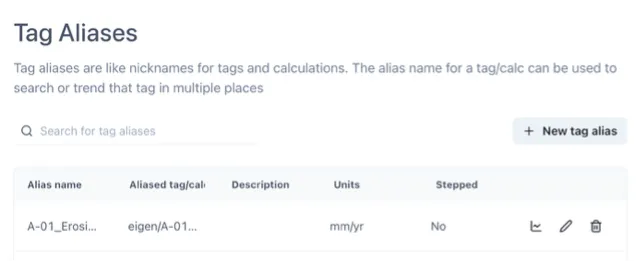
Clicking “New tag alias” brings up a blank “Edit tag alias” form and clicking the edit icon against an existing Tag Alias brings up the same form populated with the current information, which can then be edited.
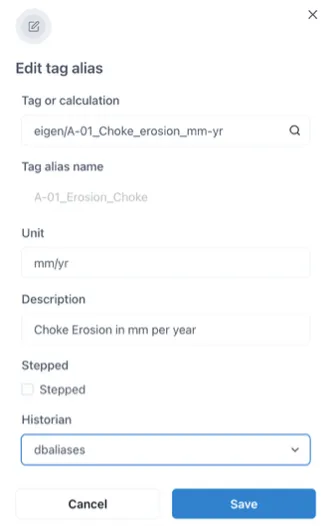
7.3.2 7.3.2 Using Tag Aliases
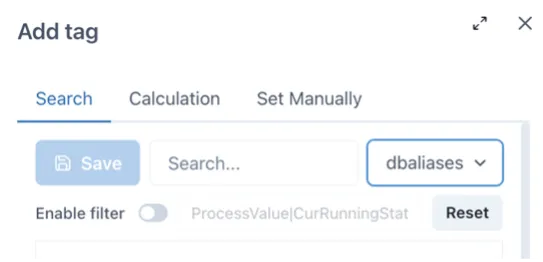
Section titled “7.3.2 7.3.2 Using Tag Aliases”Tag Aliases function like any other timeseries datasource and are available in the tag search. To limit the search to just Tag Aliases, select the alias database in the dropdown menu of timeseries data sources on the right side of the Search on the “Add tag” form as shown in the picture below.
7.4 SQL Historian
Section titled “7.4 SQL Historian”The SQLHistorian is a module that can connect to any supported SQL database and retrieve data in a form acceptable by Historian API, including calculation engine. The SQL Historian is included with the SQL Driver, which is a separately licenced driver.
All variants of SqlDb Historians require a configured SQLDB connection first, then it is referenced by specific SqlDb Historian config.
7.4.1 Local SqlDb Historian
Section titled “7.4.1 Local SqlDb Historian”Also called referred to as the built-in SQLDb Historian, this is a readable and writeable instance of SQL historian that works on predefined (i.e. fixed) database structure (automatically created by Liquibase) and supports now H2 embedded DB and PostgreSQL.
To configure instance of local SqlDb Historian, you can set following environmental variables:
The SQL Historian requires environment variables set up as follows:
# SQLDB configuration of name `mydb`EIGEN_RESOURCES_SQLDB_MYDB_TYPE=postgresqlEIGEN_RESOURCES_SQLDB_MYDB_HOST=localhostEIGEN_RESOURCES_SQLDB_MYDB_USERNAME=eigenEIGEN_RESOURCES_SQLDB_MYDB_PASSWORD=password
# Historian configuration of name `mydbhist`EIGEN_RESOURCES_HISTORIAN_MYDBHIST_TYPE=sqldblocalEIGEN_RESOURCES_HISTORIAN_MYDBHIST_SQLDB=mydb
7.4.2 Limitations
Section titled “7.4.2 Limitations”This implementation works on single timeseries in single call. For now, there’s no option to batch queries, but they can - and they are - run in parallel. Since it works on raw points directly, there’s a limit of 100.000 raw points that could be retrieved in single call when asking for interpolated points.
7.4.3 Interpolation Strategy
Section titled “7.4.3 Interpolation Strategy”The SQL Historian uses the data type defined in the meta data query and interpolates on that basis. The Local SQLDb Historian has a dedicated metadata table where the data type for each tag can be configured.
For remote or external SQLDb’s that do not have a defined data type, the data type can be forced to be interpreted as either “stepped” or “linear” by entering the 1 or 0 for the stepped field in the “metadataquery” field in the datasource configuration:

SELECT <a field> as tag, "" as description, 0 as stepped, "" as unitsFROM <some table>GROUP BY <a field>7.5 EventLog Historian
Section titled “7.5 EventLog Historian”The EventLog historian seamlessly makes numerical data in Events available as Timeseries tags that can be trended and used in calculations and KPIs. It is an extremely useful feature that bridges the commonly found gap between discrete event data and timeseries data and avoids the need to have to duplicate data across multiple databases.
As shown in the diagram below, the EventLog historian serves as a compatibility layer between the Historian Multi API and the Event Log, enabling users to trend numerical values stored in event fields as if they were part of a regular historian database.
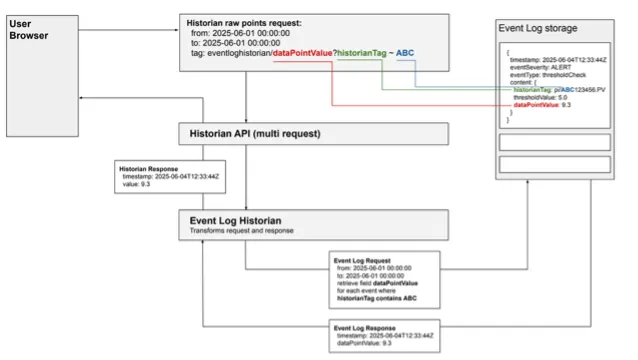
The ”tag” in this case is a reference to one or more fields in the content of an event. In events generated within Eigen Ingenuity, this is called the “extendedFieldMap”.
Unlike timeseries data in traditional historians, which is typically high-frequency (seconds, minutes & hours), events occur much less frequently, with each event corresponding to a single raw data point. Consequently, there are no direct benefits to trending event log historian timeseries in an interpolated format.
7.5.1 Accessing data in the EventLog historian
Section titled “7.5.1 Accessing data in the EventLog historian”EventLog “tags” are similar to calculated tags in the “calc/” historian in that they are defined “on-the-fly” in the tag itself. Their structure is
eventloghistorian/Field?Filter1 = x & Filter2 = yEventLog “tags” function like any other timeseries data source and are accessed and created via the tag search. To limit the search to just the EventLog, select the “eventloghistorian” data source in the dropdown menu on the right side of the Search on the “Add tag” form, as shown in the picture below.
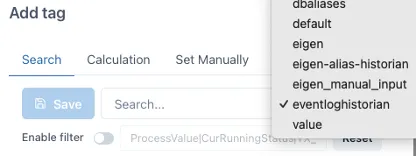
By default, all content fields are available as Event Log historian tags so the way to create one is to search for the field in the tag search and then add any filters. For example:
eventloghistorian/DailyVolumeUsed?chemical = DemulsifierWhen trending a field with a given name, the system returns all events containing that field with values that can be interpreted as numbers. For events associated with specific contexts — such as those originating from multiple sources — users can apply filters to the time series to exclude unwanted events. These filters can operate on event content fields by checking for specific values or searching for events that contain particular phrases.
7.5.2 Using the Event Browser
Section titled “7.5.2 Using the Event Browser”The Event Browser is an extremely useful companion tool for browsing events and view the available fields in the extendedFieldMap section.
Users can search and filter for relevant events and view the raw JSON by clicking the “<>” icon next to the event. This shows all the available data and, most importantly, the fields available in the content (extendedFieldMap):
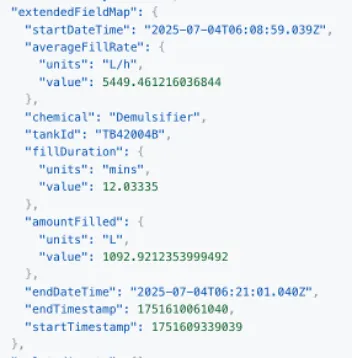
Looking at this event, we can create a virtual timeseries that trends the “amountFilled” for tank TB42004B using the Event Log historian as follows:
eventloghistorian/amountFilled.value?tankId = TB42004Beventloghistorian/amountFilled.value?tank.Id = TB42004B7.5.3 Interpolation Strategy
Section titled “7.5.3 Interpolation Strategy”The EventLog Historian assumes the underlying data is stepped and interpolates on that basis.