Model Driven Dashboards
5 Model Driven Dashboards
Section titled “5 Model Driven Dashboards”Model Driven Dashboards take their configuration from objects (Assets) in the Knowledge Graph. This allows you to make a single dashboard that covers multiple objects of the same type, for example Wells, equipment, rooms in a building etc. An object control is added to the page and this acts as a data source for other components on the page.
5.1 Adding a model driven control
Section titled “5.1 Adding a model driven control”To add a model driven data source to a page, select the “Assets” tab in the component panel on the left.
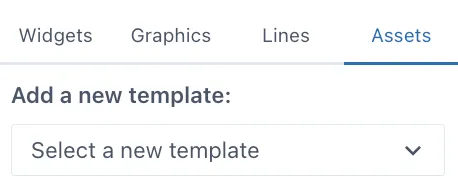
Select an object template from the drop-down menu — the dropdown lists all the available object types in the Knowledge Graph. If the list is very long you can start typing the first few characters of the object type you are looking for.
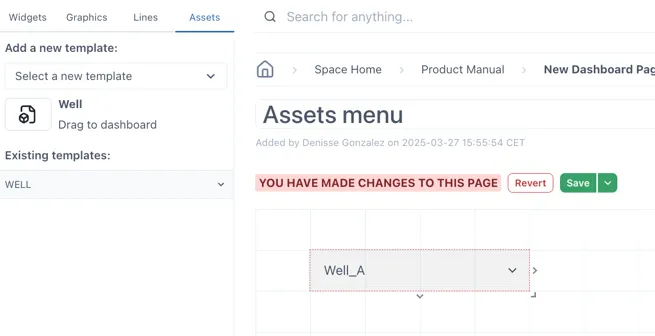
When a valid object has been selected, an icon appears below the dropdown. Drag this icon to the dashboard layout. This will create a drop-down control with a list of all the objects of that type in the Knowledge Graph. Resize it if necessary and place in the preferred location on the dashboard.
5.2 Using attributes from objects as component values
Section titled “5.2 Using attributes from objects as component values”5.2.1 Dragging a component directly
Section titled “5.2.1 Dragging a component directly”Under “Existing templates:”, open the template you added previously. This will open the related tags to this template in the asset. For example, the example Well has a tag for annulus pressure, bhp, bht, etc.
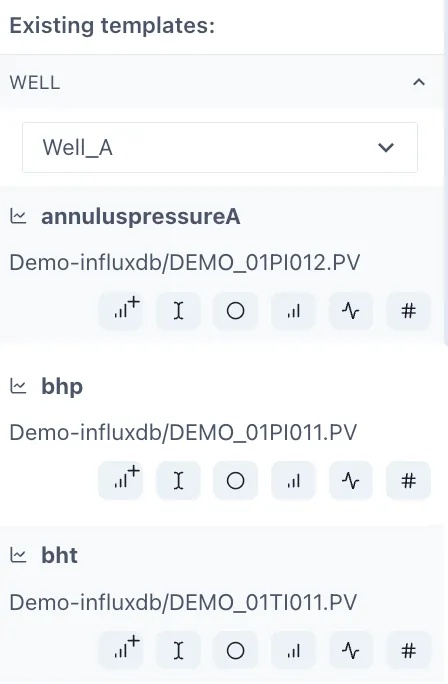
Under each tag you will find different button for the common components used with tags.
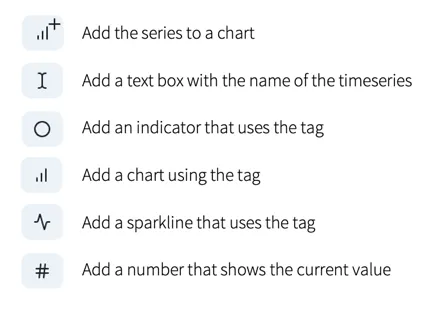
To add them in your dashboard, drag and drop them into the dashboard or to the chart in the dashboard.
When you have added some of these widgets into the menu, save your changes and change the selector you initially dragged into the page. The widgets added from the Assets menu will change to display the respective tag for the item you have selected.
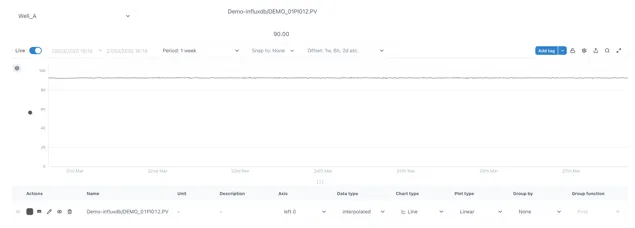
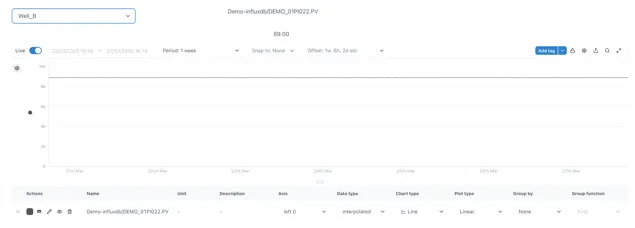
In this example, when selecting “Well_A”, the annulus pressure of this well will be displayed in the chart along with the numeric value and the name of the tag. When changing the selector to “Well_B” while on non-edit mode, all these widgets will change to display the same information but from Well B.
5.2.2 Using the Asset datasource in the component configuration
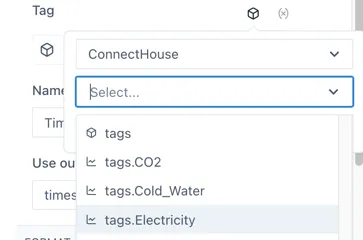
Section titled “5.2.2 Using the Asset datasource in the component configuration”Any component can be configured to use the Asset Control data source
using the “Assets” icon  above the Tag field. When you click the
Assets cube it will show a list of the available Asset data sources on
the page.
above the Tag field. When you click the
Assets cube it will show a list of the available Asset data sources on
the page.
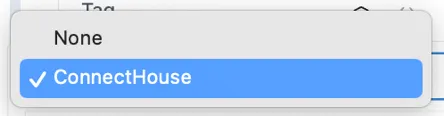
When one is selected, the property or associated timeseries parameter can be chosen from the dropdown underneath.
5.2.3 Using an attribute in a calculation
Section titled “5.2.3 Using an attribute in a calculation”Related timeseries tags on numbers from an object can be used in a calculation by completing the “Use in string” option and entering ”<<>>” in place of the tagname
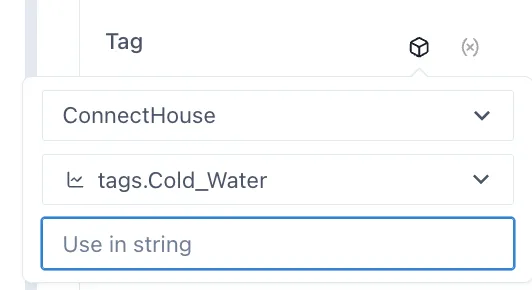
For example, in this case, to convert the 6 minute pulse count on the cold water to liters and totalize the value over the day, you would use the formula:
calc/DIV(TOTALISERAW(\<\<\>\>, DAY, BEGIN_DAY, 6m),11)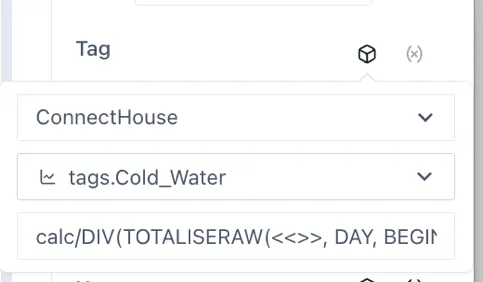
5.3 Advanced options
Section titled “5.3 Advanced options”5.3.1 Updating the URL
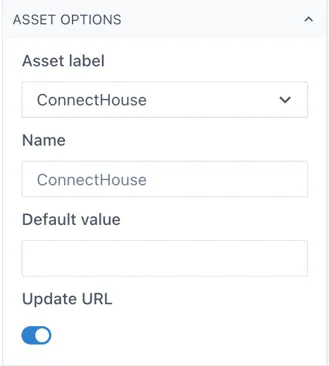
Section titled “5.3.1 Updating the URL”By storing the state of the Asset Controls in the URL, it is possible to make links to a certain state of the dashboard. For example, if you want to make a link from a drawing of “Well B” to the model driven dashboard with ‘Well_B” already selected, or if you would like to create a bookmark of the page with a certain object selected.
To update the URL with the currently selected state of the Asset Controls on the page, toggle the “Update URL” switch under the Asset Options section of the configuration:
5.3.2 Using other properties and relationships in the Knowledge Graph
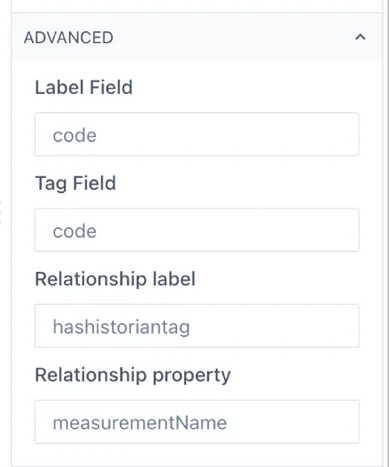
Section titled “5.3.2 Using other properties and relationships in the Knowledge Graph”By default, the Asset Control object will look for the standard properties and relationship parameters in the Eigen Knowledge graph. If you would like to use different properties, or relationship parameters, this can be configured under the Advanced section. For example, when the Knowledge Graph being used is not and Eigen one.