

Configuring Display Options
2.7 Configuring the display options for a chart
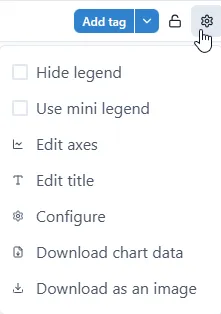
Section titled “2.7 Configuring the display options for a chart”The simplest way to access the Chart Configuration options is to click the Settings Cog icon next to the padlock in the title bar, and then select Configure in the drop-down list.
2.7.1 Chart Settings — Hide Legend
Section titled “2.7.1 Chart Settings — Hide Legend”Full legend can take significant amount of dashboard’s real-estate.
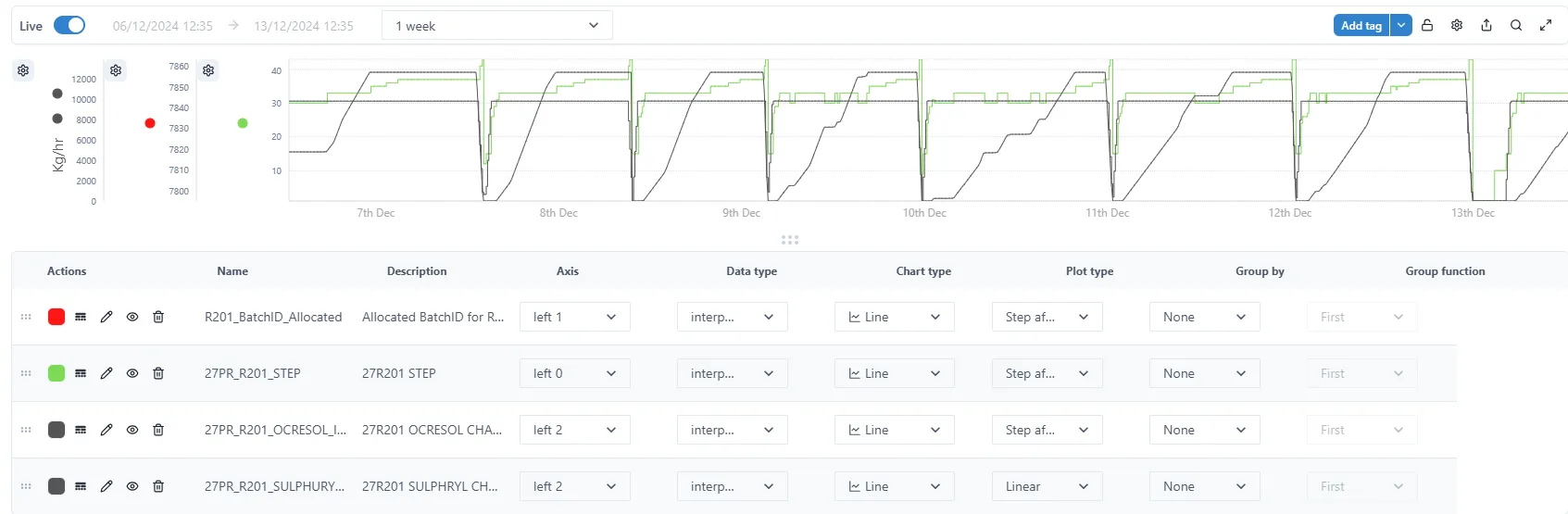
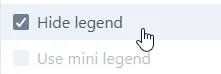
Hide and unhide the legend under the main chart area by ticking ‘Hide legend’. This saves space if multiple charts are used within a single dashboard.
2.7.2 Chart Settings — Use mini legend
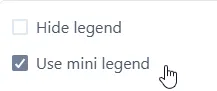
Section titled “2.7.2 Chart Settings — Use mini legend”Mini legend occupied very little real-estate on a dashboard, therefore it provides the middle point between full legend and no legend (Hide Legend). Mini legend only displays trend (pen) color and name.

To switch to mini legend tick ‘Use mini legend’.
2.7.3 Chart Settings — Edit axes
Section titled “2.7.3 Chart Settings — Edit axes”Edit chart axes by clicking ‘Edit axes’.
All axes used in a chart are listed and can be edited.

Type the axis label.
Show label
Section titled “Show label”Toggle the selection off or on to hide or show the label on an axis.
Markers
Section titled “Markers”Toggle the selection off or on to hide or show the markers on an axis.
Colour
Section titled “Colour”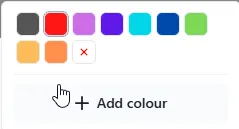
Select the axis label colour. Note: this is not the colour of the axis itself, which is always black.
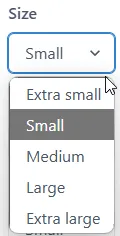
Select the size of the axis label. Note: this is not the size of the axis itself.
Axis Min value can be set manually by typing the values or using up/down arrows. If set to ‘auto’ the chart will auto scale according to the data lower range.
Axis Max value can be set manually by typing the value or using up/down arrows. If set to ‘auto’ the chart will auto scale according to the tag data upper range.
Set both Min and Max axis value to scale according to the tags data range.
2.7.4 Chart Settings — Edit title
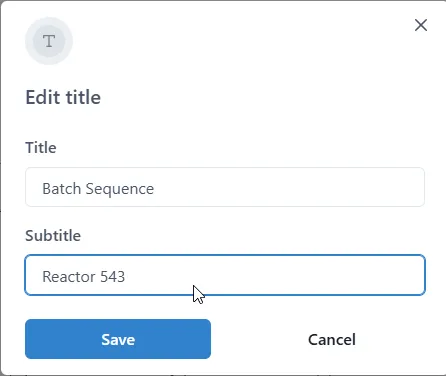
Section titled “2.7.4 Chart Settings — Edit title”Edit chart title by clicking ‘Edit title’.
Type chart title and subtitle
2.7.5 Chart Settings - Download Chart Data
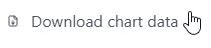
Section titled “2.7.5 Chart Settings - Download Chart Data”To download/export the chart time-series data in CSV format click ‘Download Chart Data’.
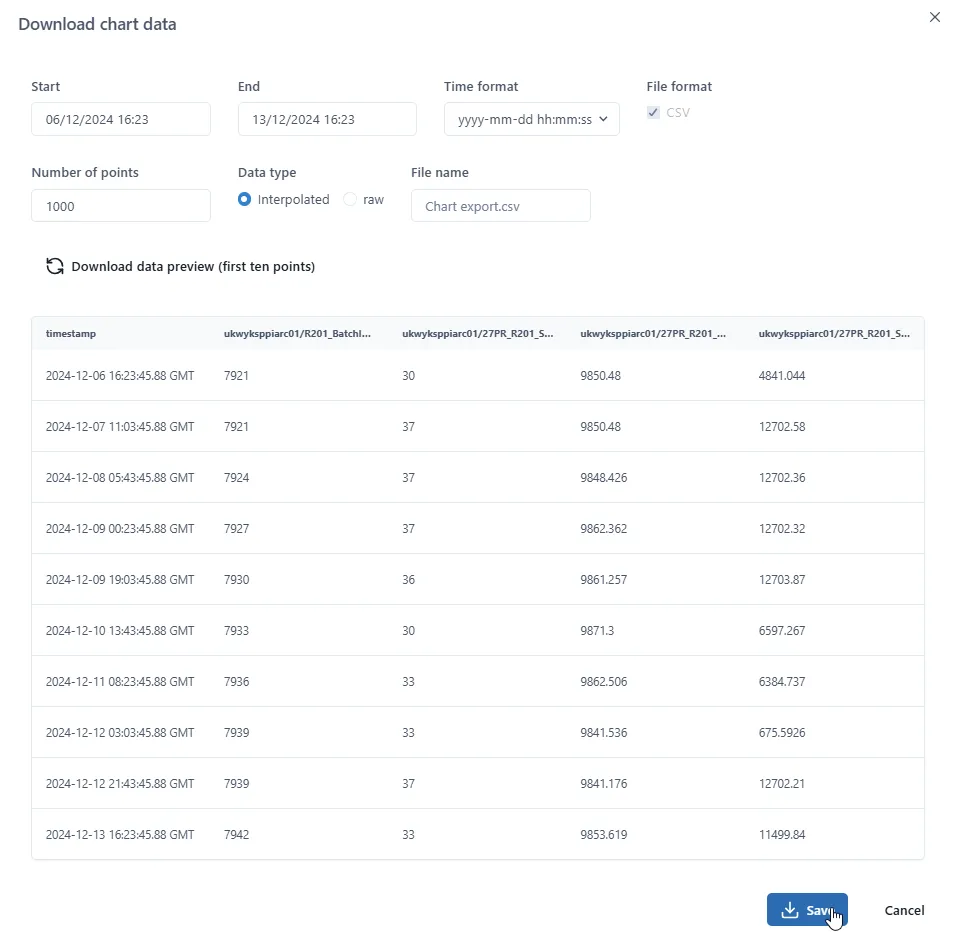
The format and the amount of data can be adjusted prior to the export. The ‘Download chart data’ popup also shows the preview of the data.
Start / End
Section titled “Start / End”Start and End date/time selection enables user to define the export time window. Default is the chart time window.
Time Format
Section titled “Time Format”Time format can be selected from the dropdown from the list of predefined formats or entirely specified by a user.
File Format
Section titled “File Format”File format is CSV and cannot be changed by a user.
Number of points
Section titled “Number of points”Specifies the maximum number of data points (time series records) to be exported.
Data type
Section titled “Data type”The user can select whether ‘Raw’ or ‘Interpolated’ (sampled) data to be exported by selecting one of the radio buttons.
File Name
Section titled “File Name”The file name can be specified by a user. The destination is always to the \Download folder.
Download data preview (first ten points)
Section titled “Download data preview (first ten points)”If one or more parameters are changed click to reload the preview.
2.7.6 Chart Settings - Download as an image
Section titled “2.7.6 Chart Settings - Download as an image”To download the chart image, click ‘Download Chart Data’.
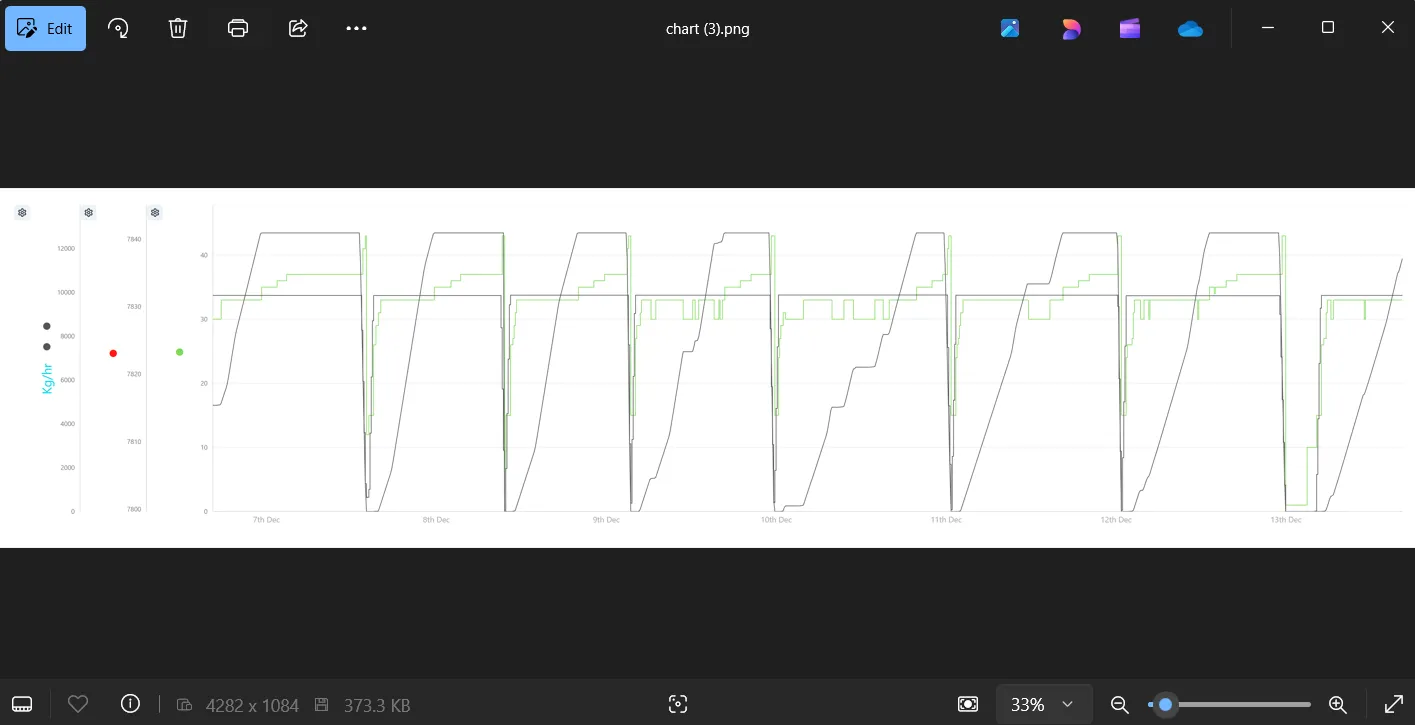
The image is downloaded to the \Downloads folder in png format.
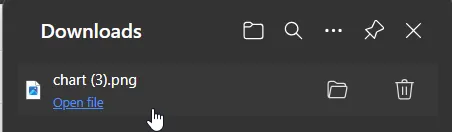
The image can be open with any photo viewer supporting png format.
2.7.7 Chart Settings - Configure
Section titled “2.7.7 Chart Settings - Configure”
This then presents the main Chart Configuration window. ‘Values’ tab appears as default:
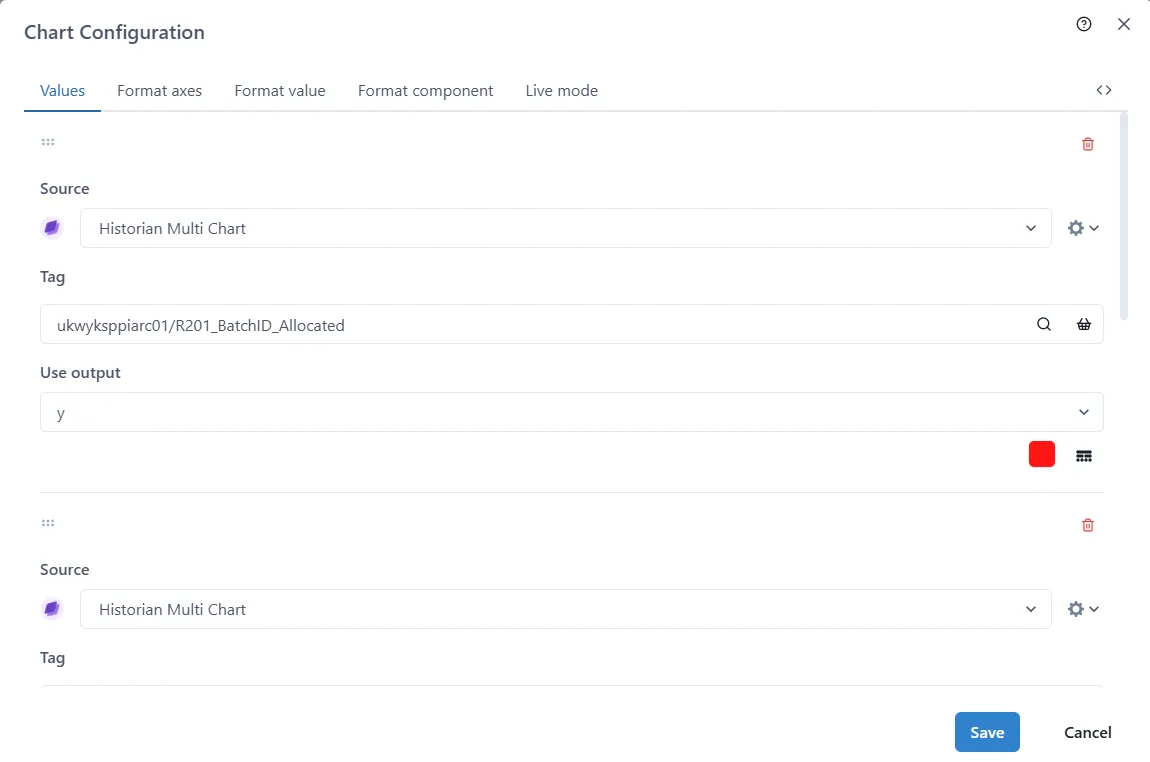
There are five sets of data that can be configured: Values (i.e. data sources), Axes Format, Data Values, Components, and Live mode.
2.7.7.1.1 Chart Configuration - Values (Format Data Sources)
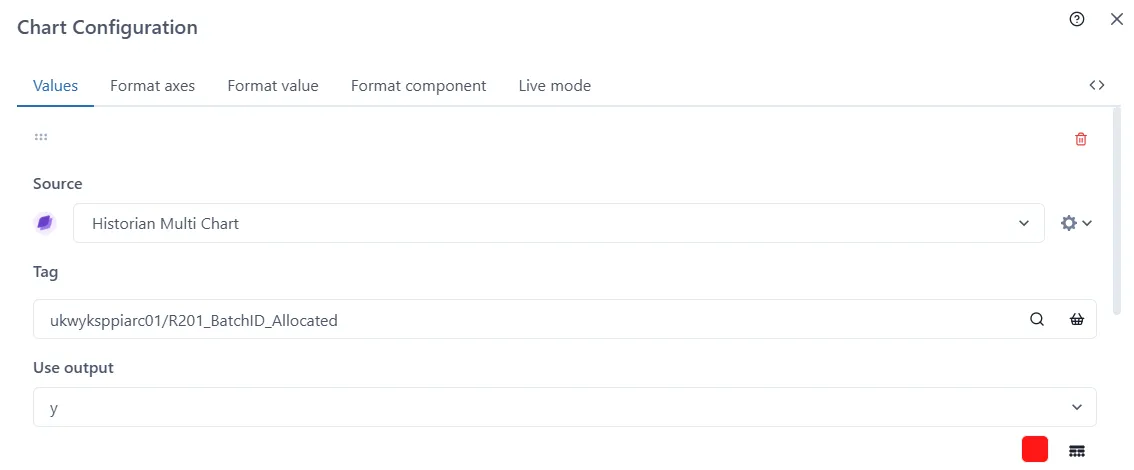
Section titled “2.7.7.1.1 Chart Configuration - Values (Format Data Sources)”It is possible to configure each tag series in chart in this menu. The configuration parameters depend on the type of source selected and its input/output configuration. The common parameter is Source. The Historian Multi Chart (default) data source has 3 parameters:
Source
Section titled “Source”Select the source for the data from the drop-down list.
Select the tag by searching or by selecting from the basket.
Use Output
Section titled “Use Output”Select the output parameter from the dropdown list.
Line configuration:
Colour
Section titled “Colour”Set by clicking the red square. Any of the standard colours can be selected or additional colours can be added
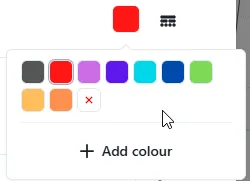
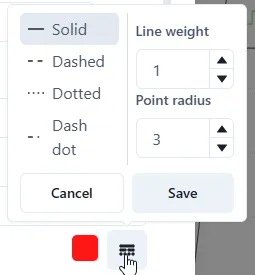
Line Type, Line Weight, Point Radius
Section titled “Line Type, Line Weight, Point Radius”Set by clicking the lines type icon. Select one of the following line types: solid, dashed, dotted, dash dot. Set Line Weight and Point Radius by clicking up/down arrows or manually enter value.
2.7.7.1.2 Chart Configuration - Format Axes
Section titled “2.7.7.1.2 Chart Configuration - Format Axes”Each of the axes can be formatted in this tab.
Min and Max values can be set manually by typing the values or using
up/down arrows. If set to ‘auto’ the chart will auto scale according to
the tag range.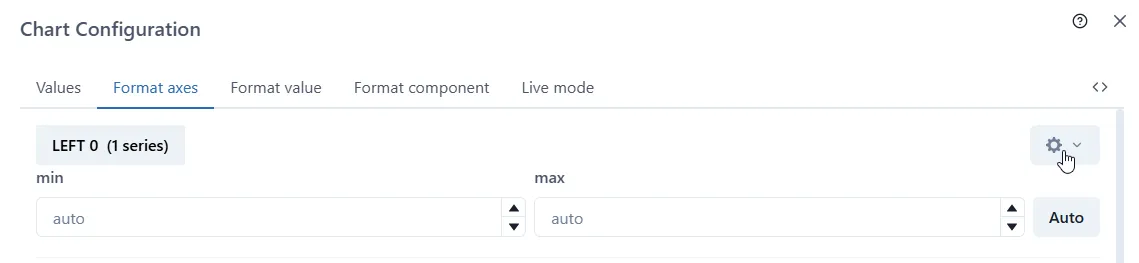 By default, only the min and max
values are shown at first, but other settings can be updated by clicking
the Settings cog on the right of each axis label.
By default, only the min and max
values are shown at first, but other settings can be updated by clicking
the Settings cog on the right of each axis label.
Scale Format
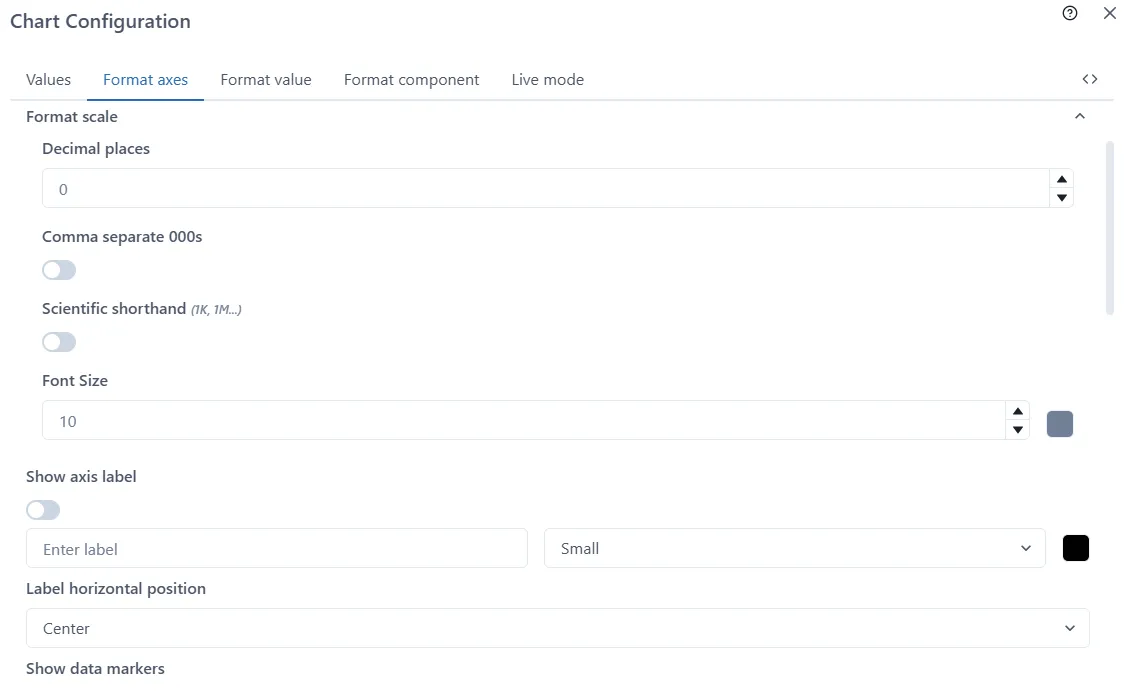
Section titled “Scale Format”Set the number of decimal places, thousands separator (comma or nothing), scientific shorthand notation and font size
Axis Label
Section titled “Axis Label”Set a custom label for the axis. Note: this will replace the units on the axis which are shown by default. It is also possible to configure the font colour and size.
The label can be hidden by toggling the Show axis label switch.
Label horizontal position
Section titled “Label horizontal position”Choose from Left, Centre (default) and Right.
Data markers
Section titled “Data markers”Show or hide the data markers on the axis by toggling this switch. The data markers are the coloured dots indicating which data series are linked to the axis.
Axis width
Section titled “Axis width”Set the width of the axis, in pixels. Using 0 or blank results in automatic width for the axis and is recommended.
2.7.7.1.3 Chart Configuration - Format Value
Section titled “2.7.7.1.3 Chart Configuration - Format Value”Choose the number of decimal places used to display the data values, and whether larger values use comma-separated thousands.
This applies to the values shown in the pop-up when hovering over a chart.
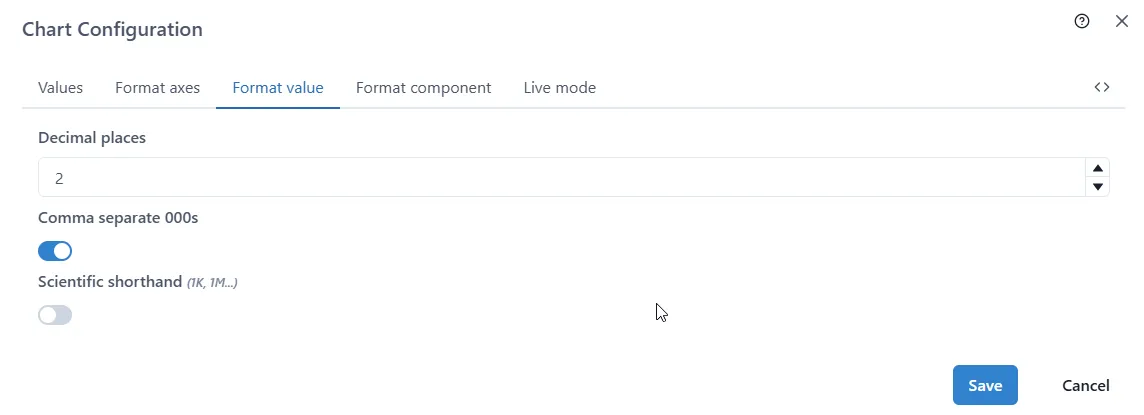
Decimal Places
Section titled “Decimal Places”Manually enter the number (integer) or use up/down arrows to set.
Comma Separate 000s
Section titled “Comma Separate 000s”Toggle the selection off or on.
Scientific Shorthand
Section titled “Scientific Shorthand”Toggle the selection off or on.
2.7.7.1.4 Chart Configuration - Format component
Section titled “2.7.7.1.4 Chart Configuration - Format component”Here are toggles to control the display.
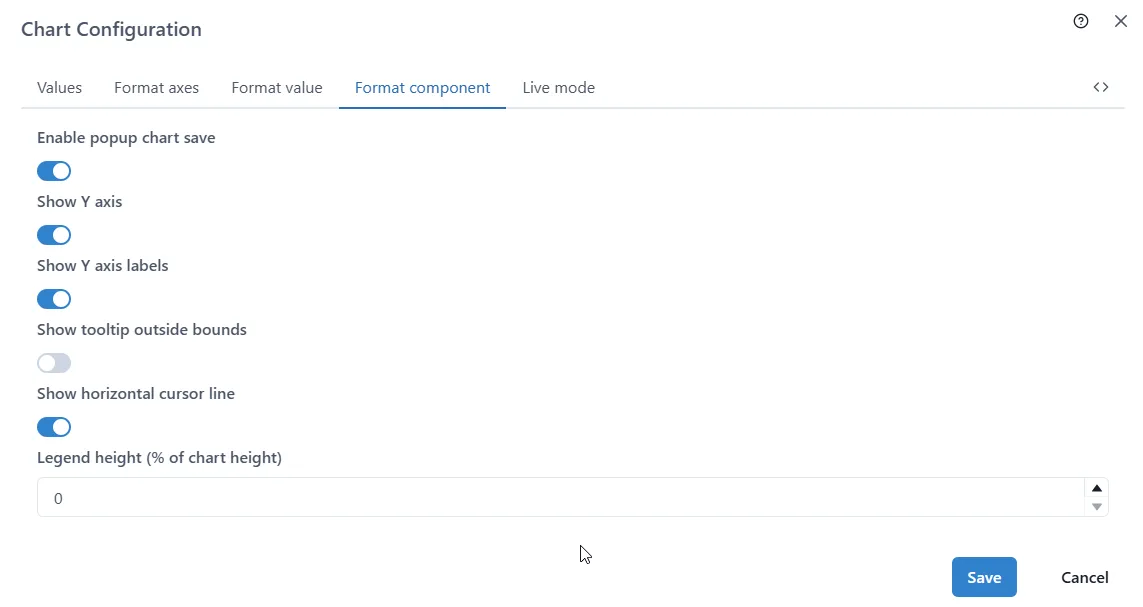
Enable Popup Chart Save*
Section titled “Enable Popup Chart Save*”Toggle the selection off or on.
Show Y axes
Section titled “Show Y axes”Toggle the selection off or on.
Show Y axes labels (these are hidden automatically if the axes are hidden)
Section titled “Show Y axes labels (these are hidden automatically if the axes are hidden)”Toggle the selection off or on.
Show tooltip outside bounds
Section titled “Show tooltip outside bounds”Toggle the selection off or on.
Show horizontal cursor line
Section titled “Show horizontal cursor line”Toggle the selection off or on.
Legend Height (% of chart height)
Section titled “Legend Height (% of chart height)”Manually enter the number (integer) or use up/down arrows to set.
2.7.7.1.5 Chart Configuration - Live mode
Section titled “2.7.7.1.5 Chart Configuration - Live mode”Live can be configured in this tab.
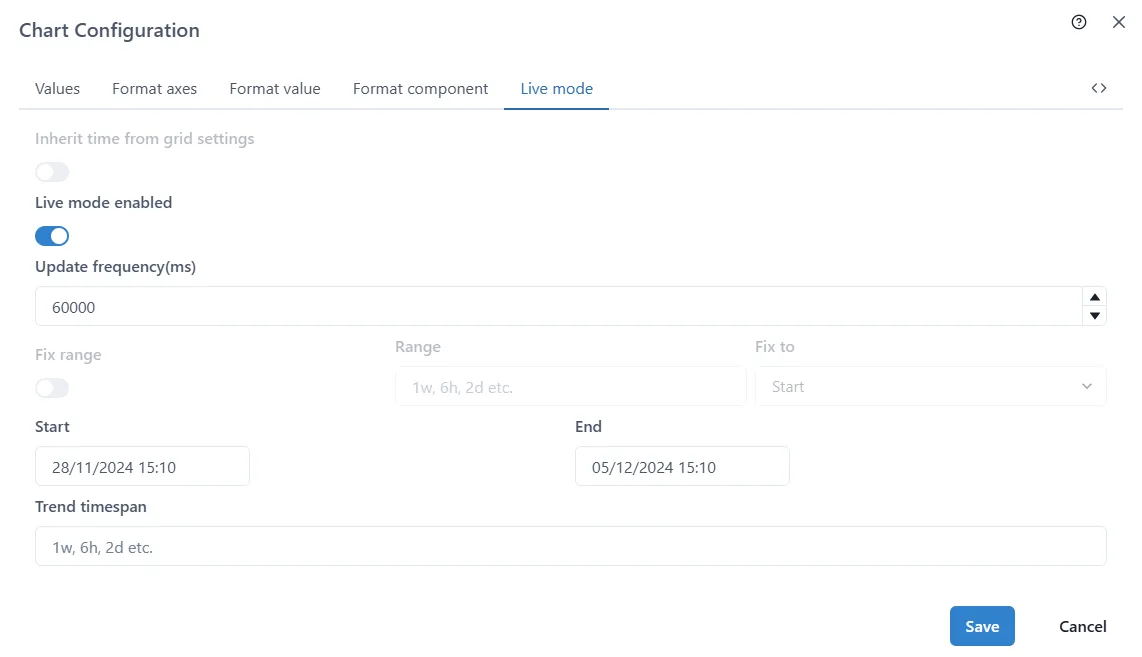
Inherit Time From Grid Settings
Section titled “Inherit Time From Grid Settings”Toggle between Live mode and not.
Live mode enabled
Section titled “Live mode enabled”Toggle between Live mode and not.
Update frequency(ms)
Section titled “Update frequency(ms)”Control how often data is refreshed. Enter the number is milliseconds. For example, enter 1000 to refresh every second, or 60000 for once a minute.
Start and End
Section titled “Start and End”Enter the start and end datetime for the data range. Note that this is not used in Live mode.
Trend Timespan
Section titled “Trend Timespan”Enter the timespan in (w, h, d, etc.) format: eg. 1w, 6h, 2d etc.
2.7.8 Changing Axis scales
Section titled “2.7.8 Changing Axis scales”To change the scale and range of the axis, first make sure the chart is unlocked (see 2.6.2)
Then simply hover over an axis and use the middle mouse button on increase/decrease the size of the range.
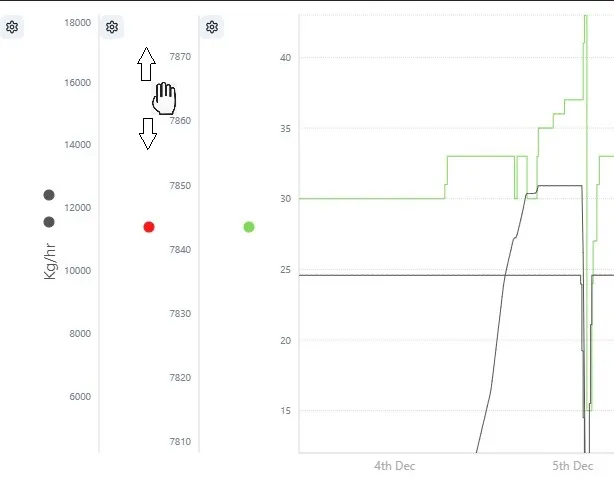
Click and drag to move the axis without changing the scale.
Click the ‘undo’ to go back to how the axis were.
For more information, please contact us at [email protected] or book a demo on our website at www.eigen.co