Tag Aliases & Alias Historian
3 The Tag Aliases Module and the Alias Historian
Section titled “3 The Tag Aliases Module and the Alias Historian”Tag aliases are like nicknames for tags and calculations. The alias name for a tag/calc can be used to search or trend that tag in multiple places The Tag Aliases module is where tag aliases are created and managed and the Alias Historian is the data source that makes them available to charts and dashboards.
3.1 Overview
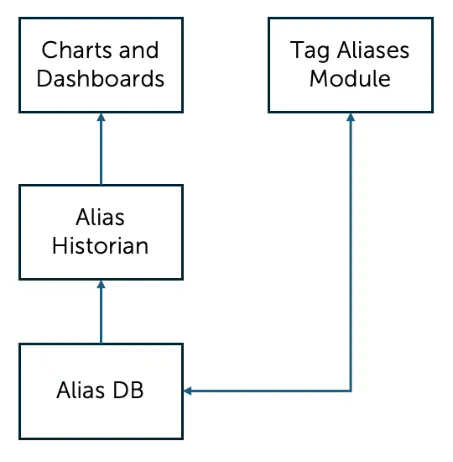
Section titled “3.1 Overview”Tag Aliases are created and managed in the Tag Aliases module. They are stored in a database and made available to use in Charts & Dashboards by the Alias Historian:
3.2 Using Alias tags
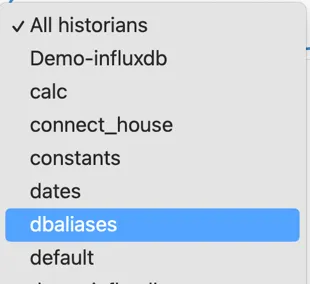
Section titled “3.2 Using Alias tags”Tag aliases can be searched for in the same way as any other tags. The search can be restricted to only search the Alias Historian by selecting the “dbaliases” data source from the dropdown:
3.3 Accessing the Alias Module
Section titled “3.3 Accessing the Alias Module”The Tag Aliases is accessed by clicking “Tag Aliases” item in the left hand navigation panel:

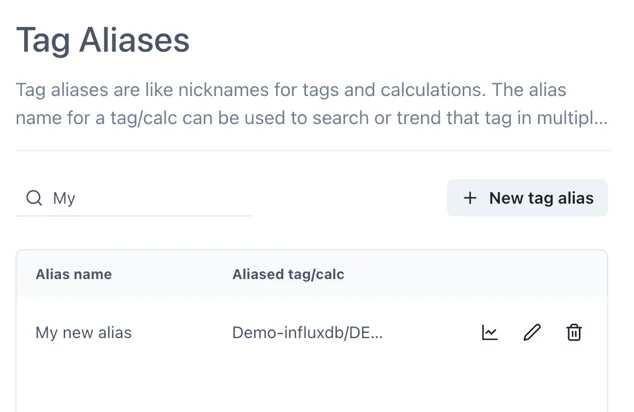
The panel on the right shows a paginated table with all the configured aliases.
3.4 Creating an alias
Section titled “3.4 Creating an alias”To create a new Tag Alias, click the [+ New tag alias] button at the top right. Enter the tag name or calculation in the Tag field (in the usual format of datasource/tagname) and the alias name you would like to use in the “Tag alias name” field.
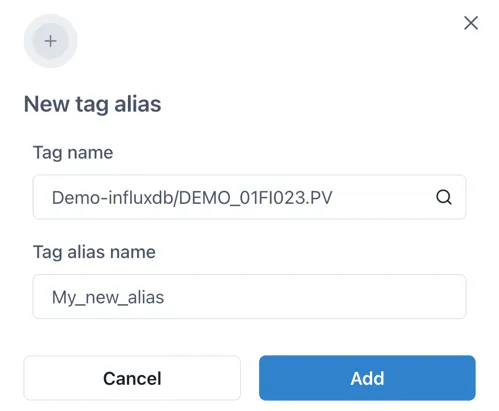
Note: it is good practice not to have spaces in the Tag alias name.
3.5 Editing a Tag Alias
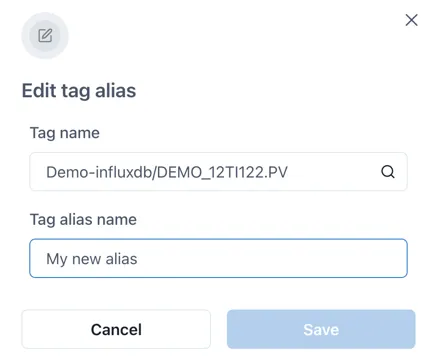
Section titled “3.5 Editing a Tag Alias”To edit a Tag Alias, click on the edit icon (pencil) at the right hand side of a tag alias to edit it.

Make any changes and then click “Save”.
3.6 Deleting an alias
Section titled “3.6 Deleting an alias”To delete a Tag Alias, click on the delete icon (dustbin) at the right hand side of a tag alias.
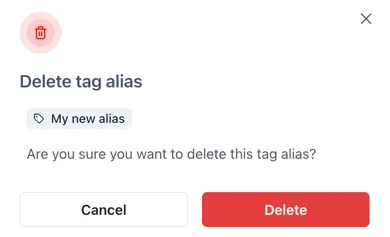
A confirmation pop up appears. Click “Delete” to permenantly delete the tag alias.