The Signals page in the Eigen BSP provides a specialized interface for visualizing the various data source signals that contribute to barrier impairments. This page presents information as a temporal journey, allowing users to move from high-level maintenance timelines to granular work order details and manual overrides.
Bubble Plot
Bubble plot to present the work orders timeline

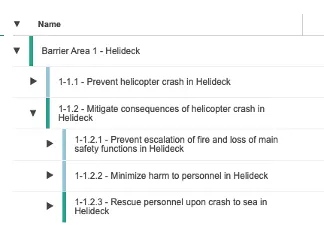
Hierarchial Scoring Tables
Barrier overview in a nested tabular format.
Filter
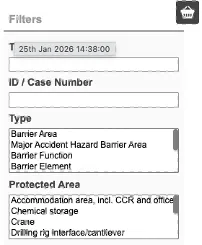
Refer to Filter section
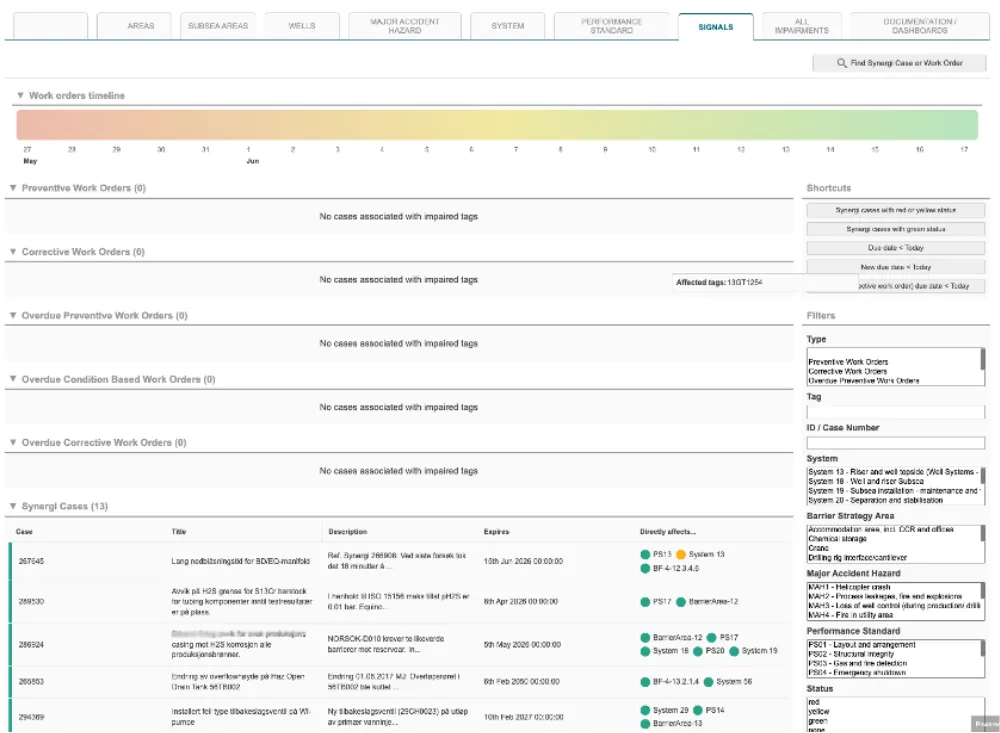
The primary feature of the Signals page is the Timeline, which provides a visual representation of all active and upcoming signals affecting the barrier impairments. Signals are any indication from data sources that represent a barrier element impairment, such as work orders and safety observations, but they can also be operational barriers, such as functions and procedures. However, the main type of signal being visualised are work orders.
This is typically represented on a bubble plot (See bubble chart section).
- Temporal Orientation: The timeline displays the current date on the left side and moves into the future towards the right.
- Colour Coding for Urgency:
- Red (Left): Indicates the most recent dates and work orders that are currently overdue or expiring immediately.
- Yellow (Middle): Represents work orders approaching their expiration dates.
- Green (Right): Shows work orders scheduled further into the future that are currently in a healthy state.
- Purpose: This visual indicator allows users to prioritize their attention on corrective or preventative work orders that are set to expire soonest, ensuring critical issues are addressed before they impact safety.
Below the timeline, the page presents detailed tables categorized by the type of impairment signal. These tables allow for specific tracking of:
- Synergi Cases and Safety Observations: (SC)
- Corrective Work Orders: (CWO)
- Preventative Work Orders: (PWO)
- Overdue corrective work orders: (OCWO)
- Overdue preventative work orders: (OPWO)
- Overdue condition-based work orders: (OCBWO)
- Operational Barriers: In some configurations, this includes procedures that have expiration dates similar to physical work orders.
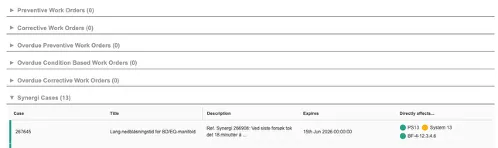
The Signals page includes a robust Manual Handling feature, allowing authorized users to manage how automated signals impact the barrier status.
- Override Status: Users can click on a specific work order or signal to manually override its current status.
- Required Documentation: When an override is performed, the system requires the user to provide:
- A Justification: A text description of the reason for the manual change.
- Timeline: Both the date the change was made and a specific expiration date for the override.
- Visual Selection: The user can manually set the colour of the overridden status.
- Audit Trail: The system automatically captures the identity of the user who made the change and any subsequent modifications, ensuring a full record is available for later analysis and safety audits.
- Visual Indicators: Overridden signals are marked with a specific tick mark icon, and the interface displays both the “Auto Status” (determined by BSP) and the “Current Status” (set by the user).
4.6 Contextual Navigation
Every signal is linked to the broader asset integrity model. By clicking on a specific signal, users can instantly see:
- Affected Performance Standards: Which safety standards are currently compromised by this specific issue.
- System Ownership: Which technical system the signal belongs to.
- Source Data: Direct links to the original information in systems like Maximo, SAP, or Synergi.