

Sunburst
What is a sunburst?
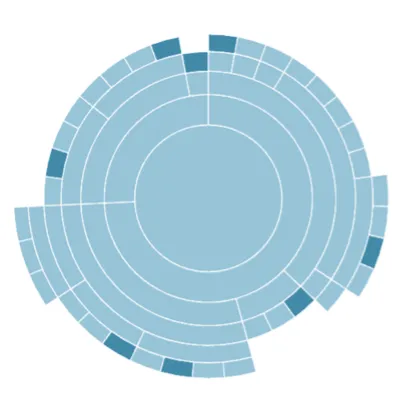
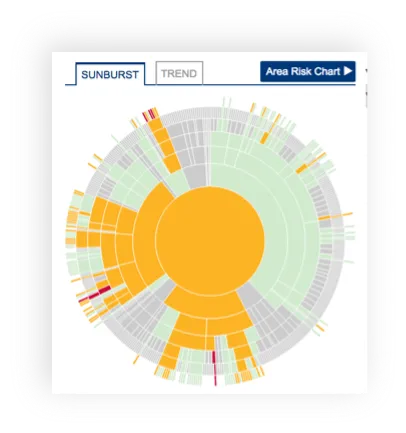
Section titled “What is a sunburst?”A sunburst chart is a radial, hierarchical visualisation that displays data arranged in concentric rings. Each ring represents a level of a hierarchy, with the innermost circle representing the top level and each successive ring outward representing a deeper level of detail.
Segments within each ring are connected to the segment in the ring above them that they belong to, allowing users to trace relationships from the centre outward and understand how the parts relate to the whole.
Sunburst charts are particularly useful for exploring hierarchical data where there are many branching paths — they allow a large amount of structured information to be presented in a single, navigable view without requiring the user to move between multiple pages or expand nested lists.
What Eigen BSP Sunbursts represent
Section titled “What Eigen BSP Sunbursts represent”In the BSP, the sunburst is used to visualise the barrier model for a specific protected area. It draws directly from the knowledge graph, the digital model of the asset that maps every element and the relationships between them, and presents those relationships in a format that allows users to explore the full barrier hierarchy at a glance.
The sunburst is structured as follows:
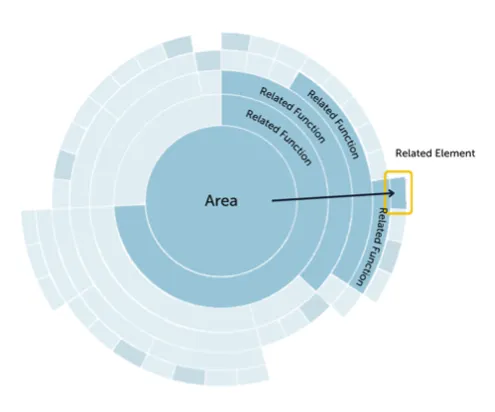
- Centre: the protected area. This is the zone of the facility whose barriers are being displayed.
- Inner rings: barrier functions and sub-functions. These are the protective objectives put in place to prevent or mitigate the hazards associated with the area.
- Outer edge: individual barrier elements (SECEs). These are the physical equipment or procedural controls that implement each barrier function.
The sunburst in the context of a bow-tie model
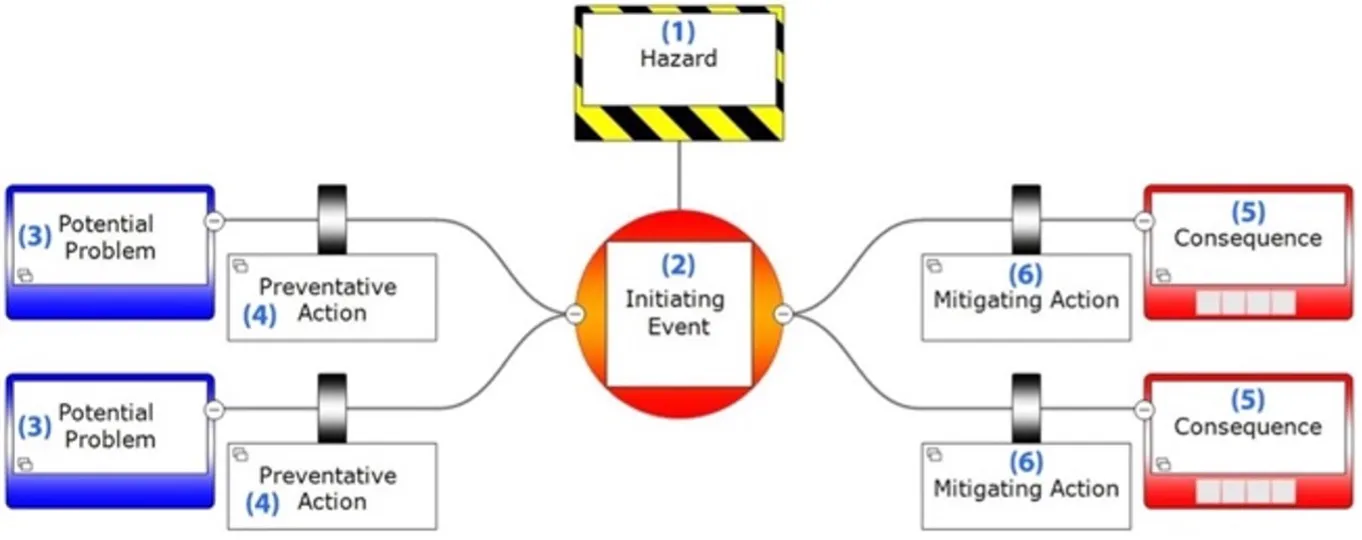
Section titled “The sunburst in the context of a bow-tie model”The sunburst contains both sides of the bow-tie model within a single view:
- Preventative functions: barrier functions on the left side of the bow-tie, designed to stop a hazardous event from occurring.
- Mitigative functions: barrier functions on the right side of the bow-tie, designed to reduce the consequences if the hazard does occur.
This means the sunburst gives users a complete picture of how well an area is protected — not just whether hazards can be prevented, but whether the consequences can be managed if prevention fails.
How are they colour coded
Section titled “How are they colour coded”Every segment is colour-coded in line with the standard status scale, allowing users to assess the health of the entire barrier model for an area in a single view. Refer to Scoring and Colour Codes section.
Features of the sunburst
Section titled “Features of the sunburst”Hover
Hovering over any segment of the sunburst displays a tooltip containing information about that element, including:
- Type — whether the segment is an area, a barrier function, a sub-function, or a barrier element.
- Name — the full name of the element as it appears in the barrier model.
Drill down by clicking a segment
Clicking on any segment of the sunburst will focus the view on that element, bringing it to the centre of the chart. The rings that appear around it will then show only the elements that are directly related to it — the sub-functions and barrier elements that sit beneath it in the hierarchy.
This feature is particularly valuable for larger areas, where the full sunburst can contain many barrier functions and hundreds of elements across both preventative and mitigative paths. In its complete form, a sunburst for a complex area can become difficult to read, segments become narrow and labels overlap. Drilling down into a specific function makes the relevant portion of the model legible and easier to analyze.
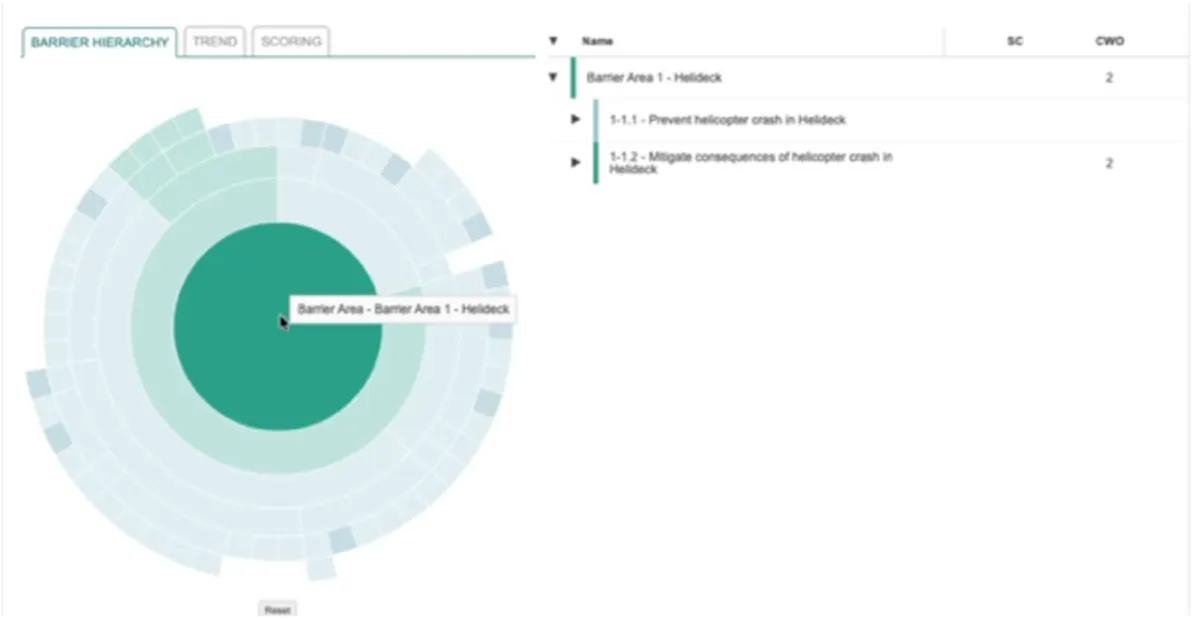
To navigate back up the hierarchy, click the centre of the focused sunburst to return to the parent level, continuing upward until you reach the full area view again.
Right-click to open the Common Menu
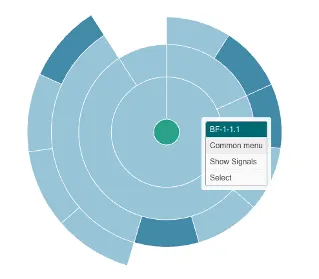
Right-clicking (or left clicking in certain BSP configurations) on any segment of the sunburst opens the Common Menu for that element. The Common Menu provides a full contextual breakdown of the selected element.
The Common Menu is the primary route from the sunburst into the underlying detail behind any status. If a segment is showing amber or red, right-clicking it and opening the Common Menu is the fastest way to understand why and to access the source data behind the impairment. See common menu section for more information.
Understanding a sunburst in Eigen BSP
Section titled “Understanding a sunburst in Eigen BSP”The following two examples will explain how to understand the sunburst in two instances. One with preventative measures.
Example : Preventative Measures
Section titled “Example : Preventative Measures”To illustrate how to read the sunburst, consider the following example. An offshore facility includes a Helideck area. One of the major accident hazards associated with this area is a helicopter crash.
The bow-tie for this hazard contains multiple preventative and mitigative barrier functions, each made up of one or more barrier elements. The sunburst displays all of these simultaneously.
Following a single preventative path through the sunburst:
Helideck → Prevent helicopter crash in Helideck → Prepare for helicopter arrival in Helideck → Landing permit in Helideck
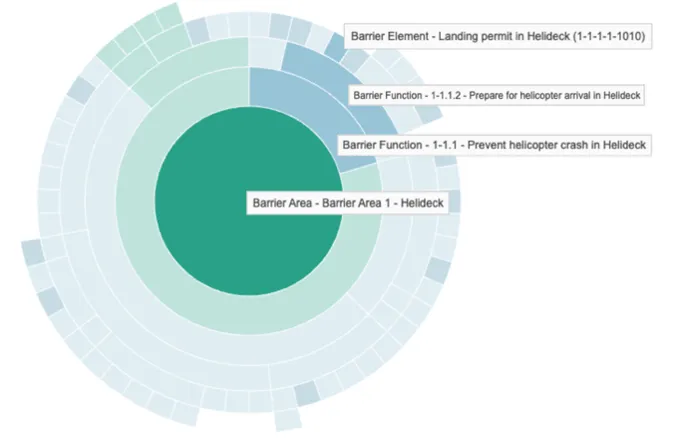
Reading this from the centre outward:
Helideck - the centre of the sunburst. This is the protected area being viewed.
↓
Prevent helicopter crash in Helideck - the first ring outward. This is the barrier function, the high-level protective objective associated with the helicopter crash hazard.
↓
Prepare for helicopter arrival in Helideck - the next ring. This is a sub-function of the barrier function above it, representing a more specific protective activity that contributes to preventing the hazard.
↓
Landing permit in Helideck - the outer edge. This is the barrier element, the specific operational control that implements the sub-function. In this case it is a procedural barrier: the requirement for a landing permit to be in place before a helicopter arrives.
This single path is one of many that will be visible in the sunburst for this area. Other paths will represent different preventative measures against the same hazard, as well as mitigative measures that manage consequences if a helicopter incident does occur. The number and nature of these paths will depend on the hazard model configured for your facility.