
Visual Asset Diagram
What is a visual asset diagram?
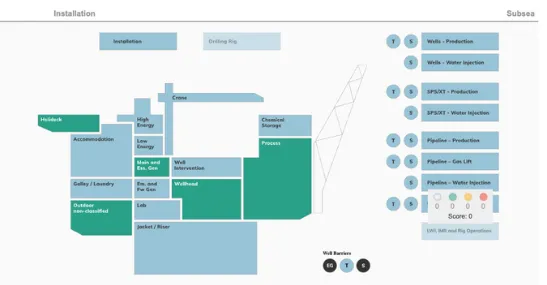
Section titled “What is a visual asset diagram?”A visual asset diagram is a graphical representation of an installation, presenting the facility as a navigable map that users can interact with directly. It is one of the most distinctive features of the BSP and is rooted in the concept of the digital twin, a digital replica of the physical asset that reflects its real-world structure, layout, and relationships.
Rather than navigating the facility through lists or menus alone, the visual asset diagram allows users to orient themselves spatially within the asset, identifying areas of interest in the same way they would on a site plan or facility drawing. This makes the interface intuitive for personnel who are already familiar with the physical layout of the installation.
Visual Asset Diagrams in Eigen BSP
Section titled “Visual Asset Diagrams in Eigen BSP”Every visual asset diagram in the BSP is unique to the installation it represents. Because each diagram is a digital twin of a specific facility, no two will look the same the layout, the areas shown, and the level of detail will all reflect the real-world structure of that asset. Eigen works with customers during deployment to produce diagrams using available source materials such as plot plans, overview drawings, and facility schematics.
Some facilities contain areas that are grouped into broader categories for example, subsea infrastructure or wells which may be labelled and visually separated on the diagram to reflect their distinct nature or geographical separation from the main installation.
Features of the visual asset diagram
Section titled “Features of the visual asset diagram”Colour coding
Each area on the diagram is colour-coded according to its current level of impairment, using the standard status scale. This allows users to identify at a glance which areas of the facility are healthy and which have active impairments requiring attention, without needing to navigate into each area individually.
For a full explanation of the colour scale and what each status means, see Scoring & Colour coding section.
Hover to view score
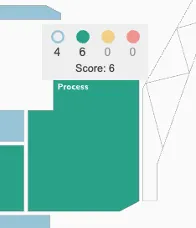
Hovering over an area on the diagram displays its current safety score, giving users a quick numerical summary of the impairment level in that zone alongside the colour-coded status.
For a full explanation of how scores are calculated, see Scoring & Colour coding section.
Click to navigate
Clicking on an area within the diagram navigates directly to the dedicated page for that area, where users can explore the full barrier hierarchy, scoring table, trend data, and sunburst for that zone.
For a full description of what is available at the area level, see Areas section.
Common Menu access
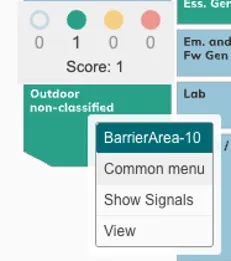
Right-clicking on an area opens the Common Menu for that element, providing a contextual breakdown of its current status, active impairments, and links to relevant source records. In some BSP configurations this may be accessed with a left click rather than a right click — refer to your specific deployment if you are unsure.
For a full description of the Common Menu and all its tabs, see Common Menu section.