

Tables
Tables are one of the primary ways data is presented in the BSP. They provide a structured, scannable format for viewing barrier status, impairments, and associated data across the asset. There are two types of tables used in the BSP: standard tables and hierarchical tables.
Standard Tables
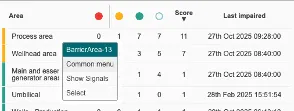
Section titled “Standard Tables”Standard tables display data in a flat, row-and-column format. They are used throughout the BSP wherever a straightforward list of items and their associated data is the most appropriate way to present information for example, on the Signals page or the All Impairments page.
Filtering
Where a filter bar is present on the page, the table will respond to the active filters, displaying only the rows that match the selected criteria. For a full explanation of available filters, see Filters section
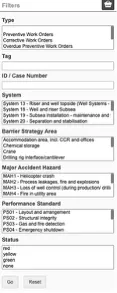 Example filter
Sorting
Tables can be sorted by any column. Click a column heading to sort by that column, an arrow will appear in the heading indicating the direction of the sort. Click the heading again to reverse the sort direction. Click a third time to remove the sort and return to the default order.

Hover for detail
Hovering over a row or element within the table displays additional information, such as the full signal details behind an impairment or the metadata associated with a particular element.
Colour coding
Rows will typically include a traffic light indicator or colour-coded element to communicate the status of each item at a glance. This may appear as a coloured line on the left-hand side of the row or as a status indicator within a dedicated column. See colour Codes section
Common Menu access
Clicking on a row or element within the table opens the Common Menu for that item, providing the full contextual detail behind its current status and links to relevant source records. For a full description of the Common Menu, see Common Menu section
Hierarchial Tables
Section titled “Hierarchial Tables”Hierarchical tables display data in a tree structure, reflecting the barrier hierarchy of the asset. Rather than a flat list, rows can be expanded to reveal the levels beneath them, allowing users to drill down from barrier function level to individual barrier elements within the same view. Hierarchical tables are used wherever the relationship between levels of the barrier model is important context, most commonly on the Areas page alongside the sunburst.
Expanding rows
Click on a row to expand it and reveal the elements beneath it in the hierarchy. Click again to collapse. Each level of the hierarchy is indented to make the structure clear.
Hover for detail
Hovering over any row displays information about that element, including its type whether it is an area, a barrier function, or a barrier element and its current status detail.
Colour coding
Each row is colour-coded in line with the standard status scale, allowing users to scan the hierarchy and identify impaired elements at any level without needing to expand every row.
Toggle impaired only
The nested view can be toggled to show only elements that currently have active impairments. This collapses all healthy rows and surfaces only the parts of the hierarchy that require attention, making it easier to focus on what matters without navigating through the full tree.
Worked example — hierarchical table
Section titled “Worked example — hierarchical table”Using the same example as the sunburst section, consider the Helideck area of an offshore facility. The hierarchical table for this area might be expanded as follows:
Helideck → Prevent helicopter crash in Helideck → Prepare for helicopter arrival in Helideck → Landing permit in Helideck
Starting from the top level, the user would:
- See Helideck as the top-level row, colour-coded with the overall area status.
- Click to expand and reveal the barrier functions beneath it, including Prevent helicopter crash in Helideck.
- Click that row to expand further and reveal its sub-functions, including Prepare for helicopter arrival in Helideck.
- Click again to reveal the barrier elements at the lowest level, including Landing permit in Helideck.
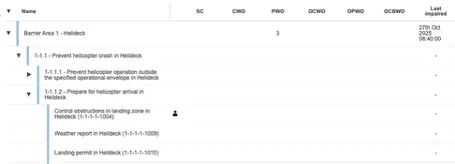
At each level, the colour coding tells the user whether that part of the hierarchy has active impairments before they expand it meaning users can navigate directly to the impaired elements without expanding every row in the tree.