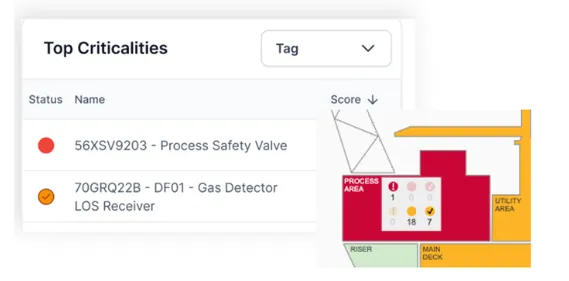

Traffic Lights
What are traffic lights in Eigen BSP
Section titled “What are traffic lights in Eigen BSP”The BSP uses a traffic light system to communicate the status of barriers, areas, and elements at a glance. The core principle is simple, colour indicates health. This allows users to immediately identify which barriers require attention without needing to read numerical scores or detailed impairment lists.

The specific colours used will depend on your BSP configuration, but will typically be a variation of the following:
🔴 Red — critical. The barrier is fully degraded and requires immediate attention.
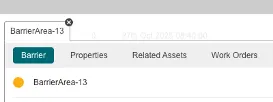
🟡 Amber / Yellow — warning. The barrier is partially degraded or has outstanding actions.
🟢 Green — healthy. The barrier is performing as required.
🔵 Blue / Grey — neutral. No information is available to determine status, or no impairments are known.
For a full explanation of what each status means and how it is calculated, see Scoring & Colour Coding section.
Where traffic lights appear
Section titled “Where traffic lights appear”The traffic light concept is applied consistently throughout the BSP, though the visual format it takes varies depending on the component for example:
Area diagram - areas on the visual asset diagram are filled with their status colour, giving the whole facility an immediate colour-coded overview. [Refer to visual asset diagram section.}(/bsp/user-guide/interface-components/diagram/)
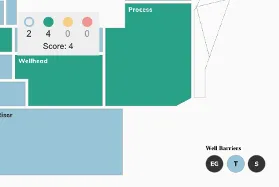
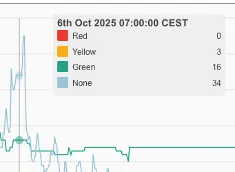
Hover tooltips - hovering over an area on the diagram or a data point on a chart displays the status colour alongside the score or element name.
Tables - status can be indicated by a coloured indent on the left-hand side of the relevant row, allowing users to scan down a list and immediately identify impaired items.
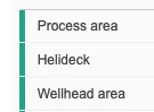
Common Menu - status colours appear against individual elements within the common menu, providing context when drilling down into the detail behind an impairment. Refer to common menu section.
Why is this important?
Section titled “Why is this important?”The consistent use of colour across all components means that a user anywhere in the BSP whether on the overview diagram, deep in a scoring table, or reviewing a trend chart is always working with the same visual language. There is no need to switch between different conventions depending on which page or component is in use. A red segment in a sunburst means the same thing as a red row in a table or a red area on the asset diagram.
This makes it straightforward to prioritise. A user scanning the asset overview can immediately identify which areas need attention, navigate into the relevant area, and trace the impairment down through the barrier hierarchy to the specific element causing it, with colour guiding them at every step.